
What WhatsApp login means
WhatsApp login is different from most apps. There is no username and password to type in. Your phone number is your account, and your phone is the key. On a new phone, you verify your number with a code. On a computer, you link the browser or app to the WhatsApp already running on your phone.
This guide covers all three ways to log in: on your phone, on WhatsApp Web in a browser, and in the WhatsApp desktop app. It also covers passkeys, two-step verification, and the fixes for the most common login problems.
Log in on your phone
Logging in on your phone is the first step, and everything else depends on it. Install WhatsApp from your phone’s app store, open it, and agree to the terms. Enter your phone number with the right country code, then wait for a verification code by text message. Enter the code, and WhatsApp will set up your account. If the text does not arrive, you can ask for the code by phone call instead.
If you are moving to a new phone, back up your chats first on the old phone, then restore the backup during setup on the new one. Your chats are tied to your phone number, not to the phone itself, so the same number keeps your account.
On supported phones, you can also set up a passkey. A passkey lets you sign back in with your fingerprint, Face ID, or your phone’s screen lock, instead of waiting for a text code. You still need to verify your phone number when you create an account or in some recovery cases, so a passkey does not fully replace the number check.
Log in on WhatsApp Web
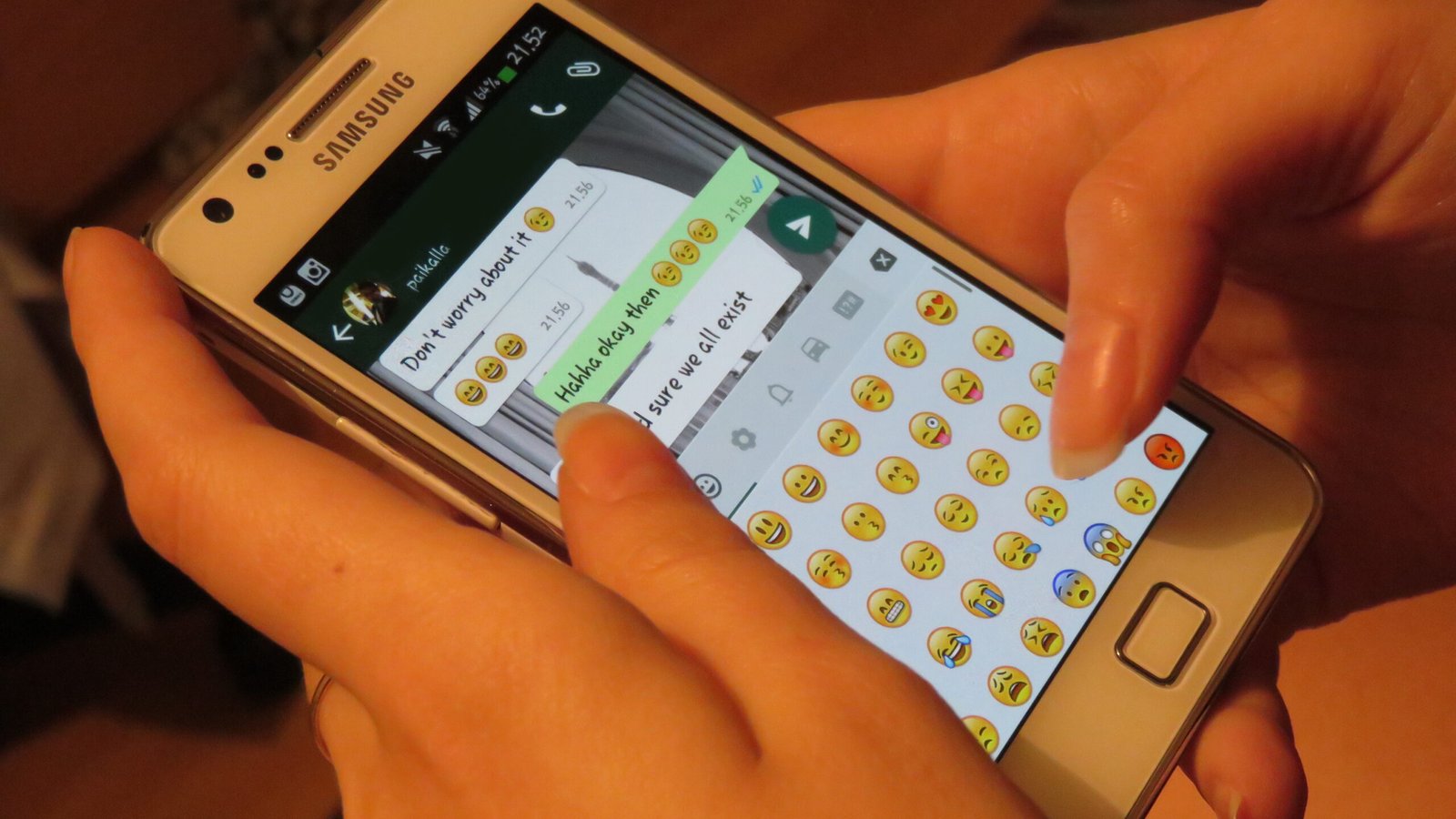
WhatsApp Web is the version of WhatsApp you use in a computer browser. Open WhatsApp Web in your browser and you will see a QR code on the screen. Then open WhatsApp on your phone, go to Linked devices, tap Link a device, and scan the QR code with your phone camera. Your chats will load in the browser within a few seconds.
On Android, Linked devices is in the three-dot menu. On iPhone, it is in Settings or under your profile picture. You only need your phone at hand the first time. After that, the browser stays linked until you log out or the link expires.
If your phone camera does not work, you can link with your phone number instead. On the QR screen, choose to link with your phone number, enter the number, and the website will show you an eight-character code. Open the WhatsApp notification on your phone, or go to Linked devices and enter that code there.
WhatsApp Web works in most modern browsers, and you can send messages, photos, and voice notes from the computer. Calls work too, but the phone app is still better for long calls. Keep in mind that the computer session depends on your phone: if your primary phone goes more than 14 days without use, all linked devices are logged out.
Log in on the WhatsApp desktop app
The WhatsApp desktop app works the same way as WhatsApp Web. Download the app for Windows or Mac, open it, and you will see a QR code. Scan it from Linked devices on your phone, just like on the web. The app keeps your chats on the computer and can send notifications even when the browser is closed.
Choose the desktop app if you use WhatsApp on the same computer every day. Choose WhatsApp Web if you are on a shared or public computer, because you can log out and leave nothing behind. On a shared computer, also uncheck the option to stay logged in when you sign in.
How many devices can you link
You can link up to four devices at a time, in addition to your primary phone. They can be computers, tablets, or another phone. Each linked device works on its own once it is set up, so you can send messages from your computer even if your phone is in another room, as long as the link is still active.
A linked device that goes 30 days without use is disconnected on its own. If that happens, just link it again with the QR code. To see all your linked devices, open Linked devices on your phone. If you see a device you do not recognise, log it out from there right away.
Two-step verification and staying safe
Two-step verification adds a six-digit PIN that WhatsApp asks for when your number is registered on a new phone. Turn it on in Settings, under Account and then Two-step verification. Add an email address too, so you can reset the PIN if you forget it. If you forget the PIN and gave an email, open WhatsApp, tap Forgot PIN, and choose Send Email to get a reset link.
Never share a verification code or a one-time passcode with anyone, even if they say they are from WhatsApp. WhatsApp will never ask for your code. Sharing it is the most common way accounts get stolen. Also watch out for fake websites that look like WhatsApp Web and ask you to scan a code or type in your number. Always type the web address into your browser yourself, and never log in from a link in a random message or email.
On shared computers, log out when you are done. On your own computer, you can set a screen lock for WhatsApp Web in its privacy settings, so it asks for a password after a few minutes of inactivity. Check your linked devices from time to time, and turn on two-step verification if you have not already.
WhatsApp login problems and fixes
If the verification code never arrives, check that the number is right, including the country code, and that your phone has signal. Wait a minute, then ask for the code again, or choose the phone-call option. A weak connection is the most common cause.
If the QR code will not scan, clean your phone camera lens, hold the phone steady, and make the browser window bright enough to see. If the code has expired, refresh the page for a new one. If the camera itself is broken, use the link-with-phone-number option and enter the eight-character code instead.
If WhatsApp Web keeps logging you out, check that your phone has been used in the last 14 days, and that the computer has been used in the last 30 days. Old sessions expire on their own, and the fix is simply to link the device again.
If you forgot your two-step verification PIN, use the email reset described above. If you never added an email address, you will have to wait seven days before you can register the number again without the PIN. There is no shortcut around that wait, and no third-party site can unlock your account for you.
If you cannot log in because you lost your phone, contact your mobile carrier first to block the SIM, then register your number on a new phone. Your account and groups come back with the number, but chats only come back if you had a backup.
Frequently asked questions
Can I log in to WhatsApp with email?
No. WhatsApp accounts use a phone number, not an email address. Email is only used to reset your two-step verification PIN.
Can I log in to WhatsApp without my phone?
You need your phone to link a new computer, because the phone proves it is your account. Once a computer is linked, you can use it on its own for a while, but the phone must stay active or the link expires.
Can I use WhatsApp on two phones?
Yes. You can link a second phone as a companion device from Linked devices, in the same way as a computer. The limit is four linked devices at a time, plus your main phone.
Why does WhatsApp Web ask for a QR code every time?
It should not, unless you logged out, the session expired, or you are on a different browser. If it keeps happening, link the device again and check that you did not turn off the stay-logged-in option.
The bottom line
WhatsApp login is simple once you know which method you need. Use your phone number and a text code on a phone, scan the QR code for WhatsApp Web or the desktop app, and set up a passkey and two-step verification so the next login is faster and safer. And never share a verification code with anyone, no matter who asks for it.